PIXELHUE
Link Function Introduction
Link Function Introduction
In the professional audiovisual (ProAV) sector, a single video processor is sufficient for video signal routing and seamless screen
switching in most medium and large-scale scenarios. However, for ultra-high-spec applications such as large-scale cultural performances,
16K ultra-wide screen conferences and multi-venue linked live streaming, one standalone device cannot support the massive, highstandard
video routing requirements due to limited signal input capacity.
The Link function of PixelHue-Q8 and P80 serves as the core solution to this challenge. It enables hardware-level interconnection between two Q8 units or two P80 units to share video inputs across devices. Users can utilize the shared sources for windowing, backup and other operations, breaking through the processing limits of a single unit and fully catering to all scenarios of ultra-large-scale projects.
The Link feature of PixelHue is designed primarily for large-scale, highly complex LED display sites to enable cascaded collaboration among multiple switchers. When the input ports of a single Q8 or P80 cannot meet the demands of ultra-large screens and multi-zone synchronized playback, you can link two devices into an integrated system. It shares input signals to realize unified scheduling and seamless synchronized output.
For large-scale concerts where a single Q8 or P80 lacks sufficient input sources, dual-device Link connection expands the total input quantity to match on-site requirements.
In mega conferences or concerts requiring identical input sources on two units, the Link function transmits inputs from one device to the other, achieving convenient source sharing.
Beyond expanding input ports, PixelHue Link also builds primary-backup redundant links to ensure uninterrupted signal transmission. It fully satisfies the strict requirements of large events for high stability, precise synchronization and large-scale video processing.
The PixelHue Link function expands the input capacity of a single unit by enabling input source sharing between two devices.
A single Q8 utilizes 8 QSFP+ (Quad Small Form-factor Pluggable Plus) ports for video source sharing. As a high-speed, high-density interconnection interface standard for professional audiovisual systems, data centers and high-end video processors, QSFP+ works with both single-mode and multi-mode optical fibers to deliver long-distance, anti-interference and low-latency data transmission.It integrates 4 independent high-speed differential channels with a per-channel rate of 10 Gbps, delivering an aggregate bandwidth of 40 Gbps per port. The bandwidth required for one 4K@60Hz RGB444 10-bit video stream is approximately 14.9 Gbps. A single QSFP+ port on Q8 can transmit 2 streams of 4K video. One Q8 can share up to 16 4K video sources in total, and two linked Q8 units can mutually share a maximum of 16 4K sources.
A single P80 adopts 2 QSFP28 (Quad Small Form-factor Pluggable 28) ports for video source sharing. As an upgraded version of QSFP+, QSFP28 supports a maximum per-channel rate of 28 Gbps, with a practical transmission rate of 25 Gbps per channel. With 4 channels in total, each QSFP28 port provides 100 Gbps bandwidth.One QSFP28 port on P80 supports transmission of 4 streams of 4K video. A single P80 can share up to 8 4K video sources, and two linked P80 units can mutually share up to 8 4K sources.
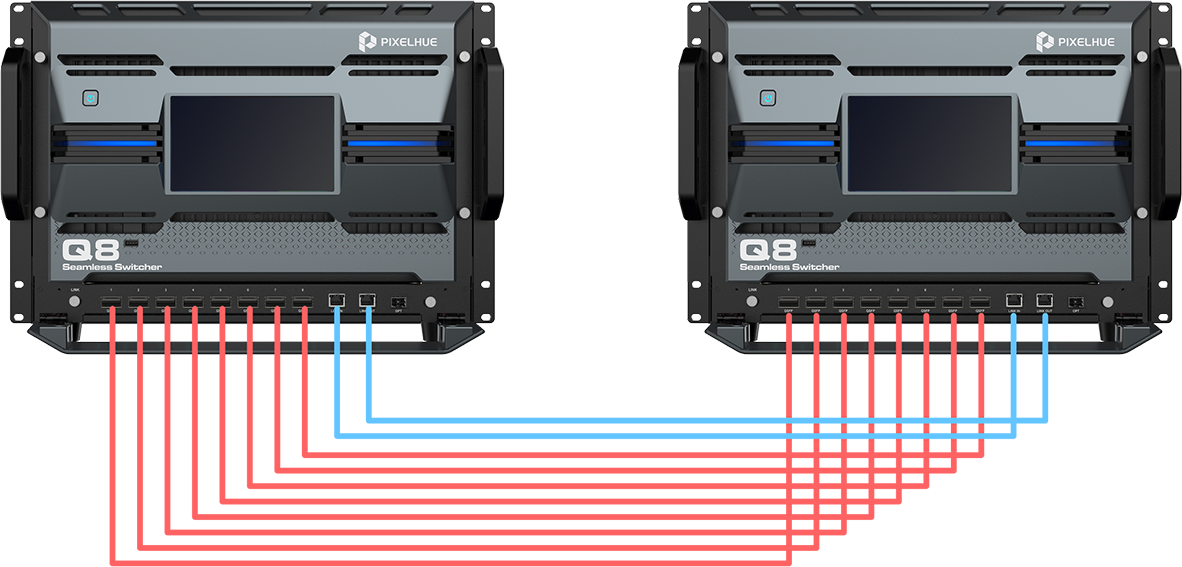
Before performing Link with two Q8 devices, you need to connect the QSFP ports and Link ports of the devices first. The schematic diagram of the Link connection between two Q8 devices is shown in the figure. The red connection represents 40G QSFP. Each Q8 device has 8 physical 40G QSFP interfaces. The QSFP interfaces of the two devices need to be connected in order: QSFP1 of Device 1 is connected to QSFP1 of Device 2, QSFP2 of Device 1 is connected to QSFP2 of Device 2, and so on. The QSFP ports are used to transmit shared video signals.
Note:
● First, the two Q8 devices need to have the same version to use the Link function; if the versions are inconsistent, the function cannot be used.
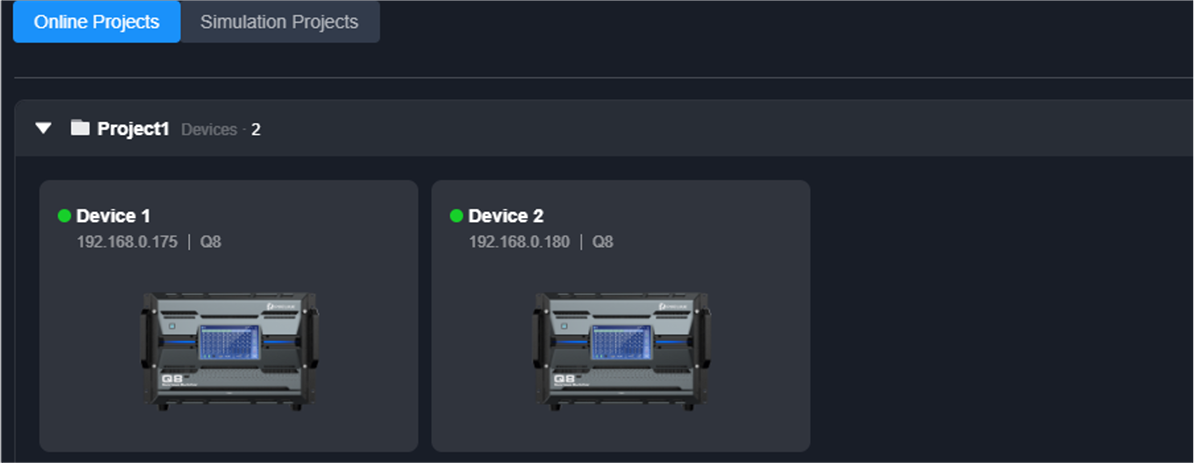
● After connecting all required QSFP ports and network ports of the two devices, add both devices to the same project in PixelFlow as shown below.
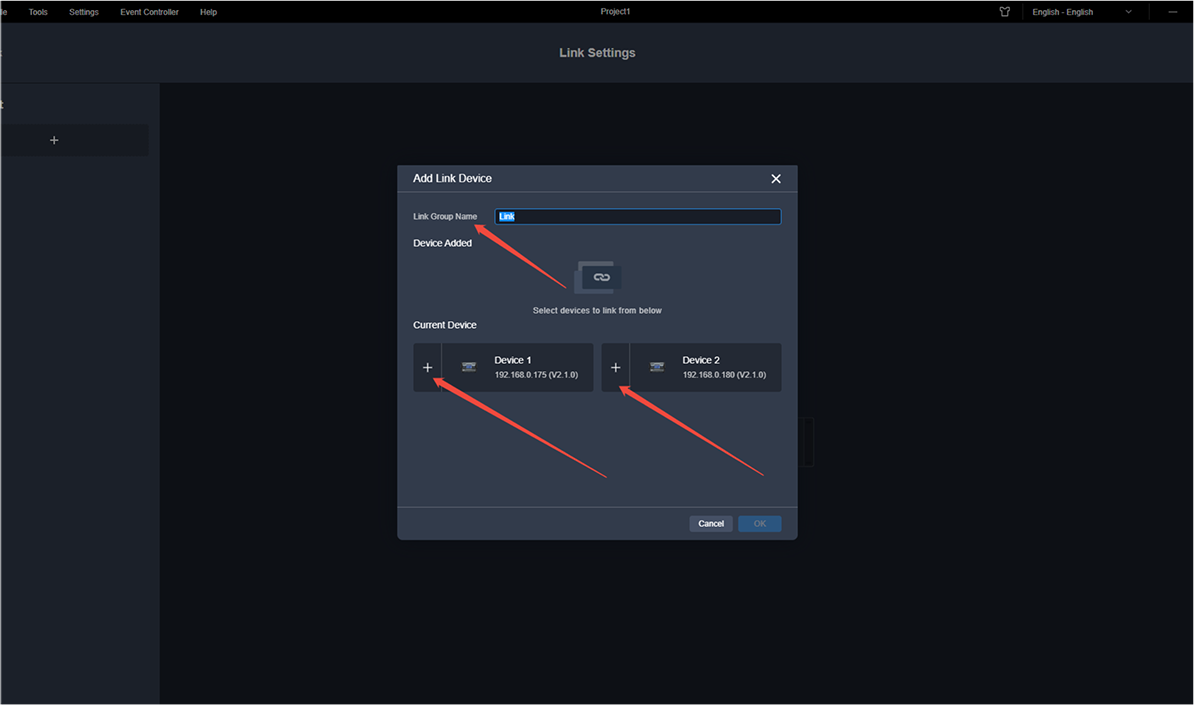
Enter the device interface of the software, go to Settings -> Link Settings, add a Link group, and enter the Link group name.
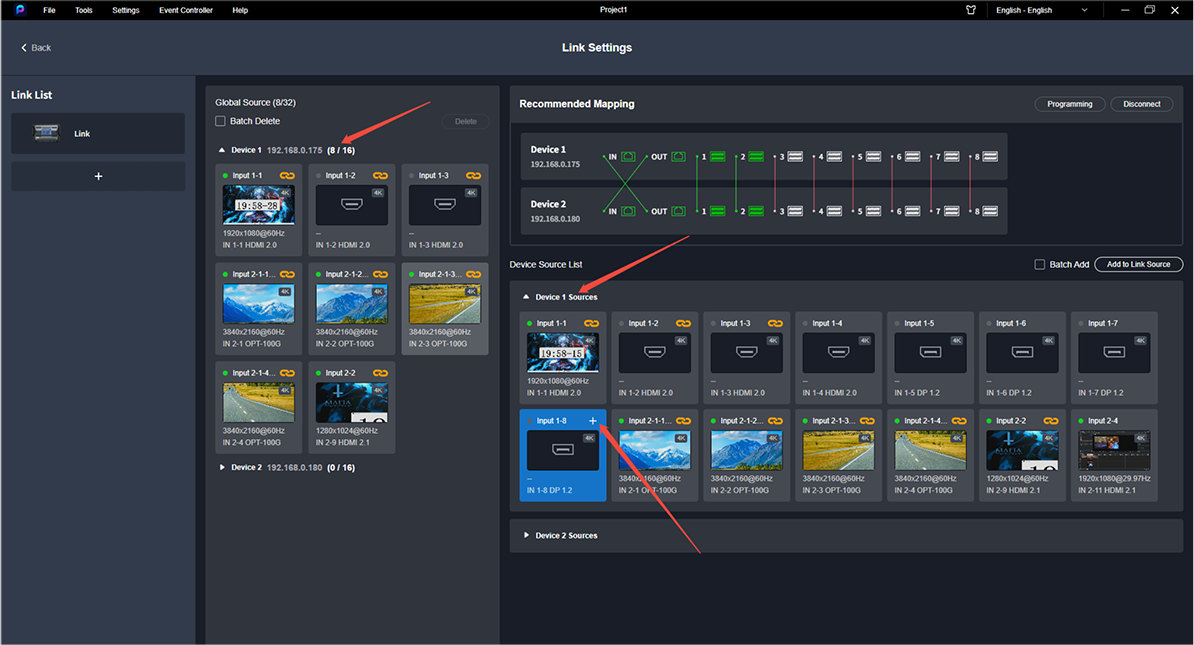
After the Link group is added, the Link group name, recommended mapping relationship, and the source list of the two devices will be displayed. In the recommended mapping relationship, the connection status of the Link's QSFP port and Link port will be shown—green indicates connected, and red indicates unconnected. In the connection status shown in the figure below, 6 QSFP ports are not connected, so the connection status is red. To enable the two devices to share 16 sources with each other, all QSFP1-8 ports must be connected.
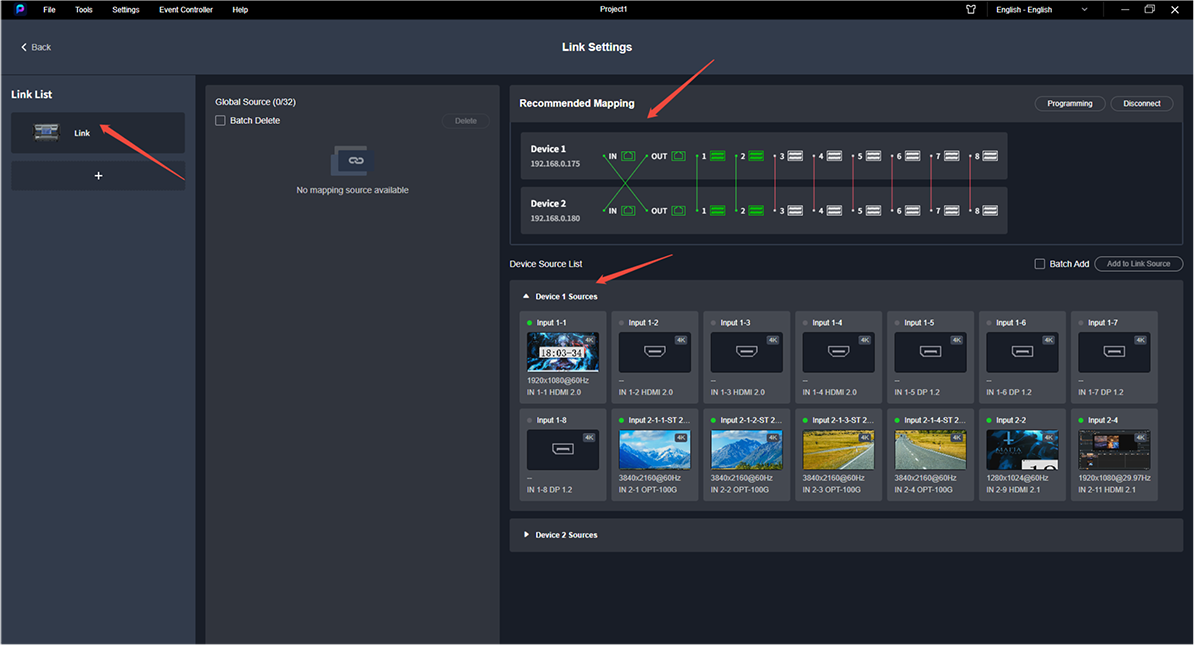
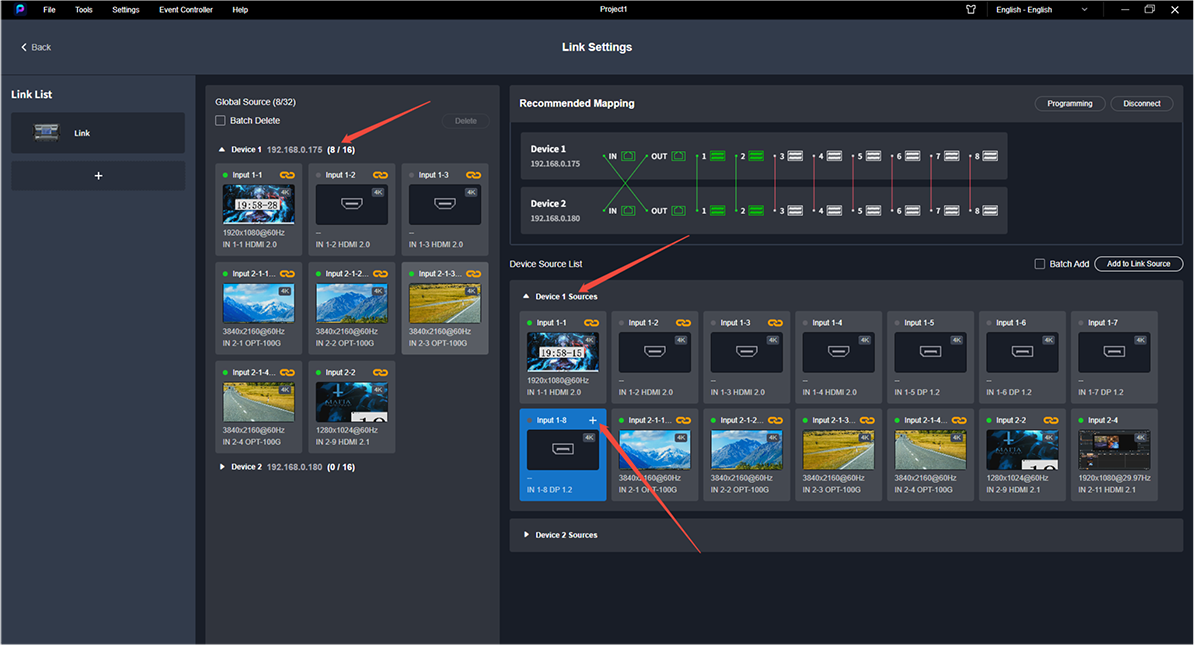
In the Link group, there are two devices: Device 1 and Device 2. Taking source sharing from Device 2 to Device 1 as an example, select the desired source in Device 2’s source list and click the + icon in the upper-right corner of the source to complete sharing. After configuration, all shared sources will be displayed in the list on the left side of the software. In this example, Device 2 shares 8 input sources with Device 1
After sharing, Device 1 can create layers and perform other operations using sources shared by Device 2. As shown below, Global sources are displayed on the left side of Device 1’s editing interface. All layer operations for Global sources are exactly the same as those for local sources. Layers built with shared sources are marked with a “G” on the source label, indicating that the layer uses a Global source.
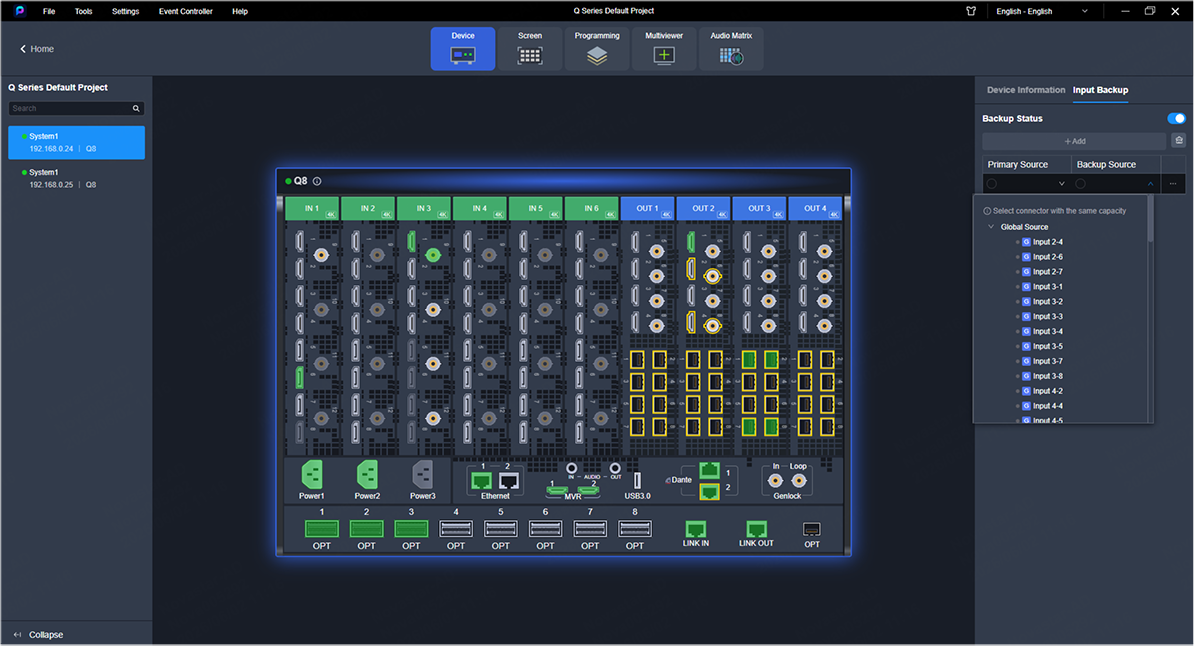
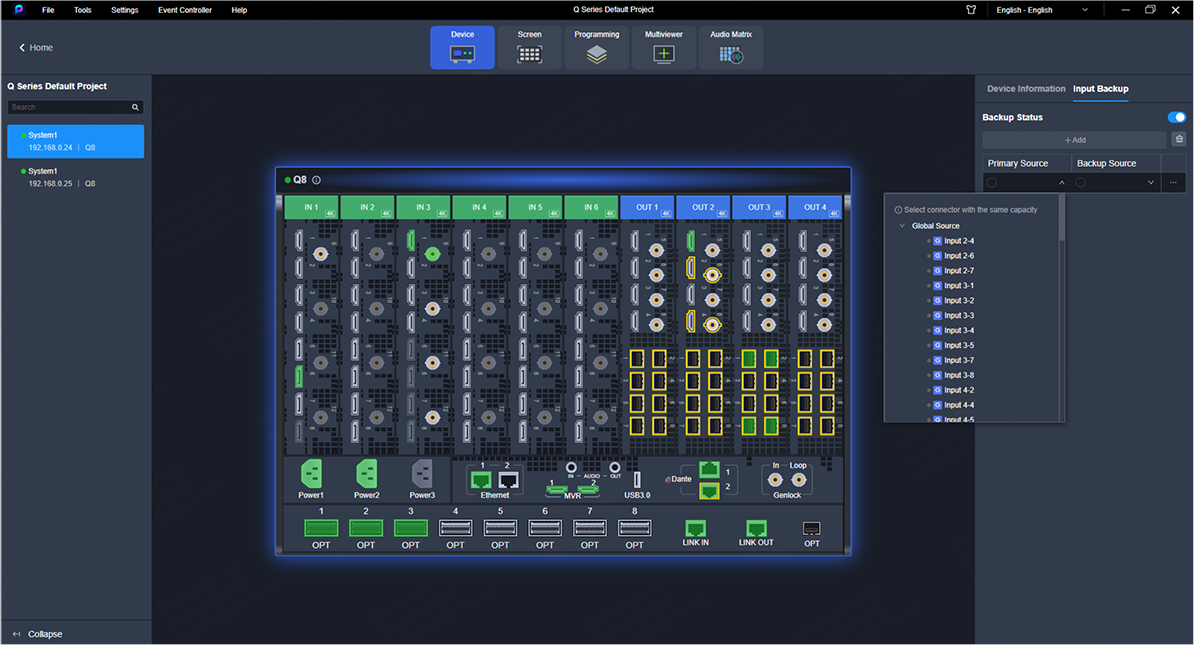
The Q8 Link function only supports dual-machine Link, not multi-machine Link (more than 2 units). A single Q8 can share up to 16 4K@60Hz input sources, and two devices can share 16 4K@60Hz input sources with each other. The shared Link sources support the input source hot backup function. As shown in the figure below, after enabling the input source hot backup, both the primary source and the backup source can select Link sources and local sources.
Notes:
Link sources support input source cropping, but do not support input source capture. Link sources carry no embedded audio and cannot be used as the reference source for screen GenLock. The windowing operation for Link sources is identical to that for local sources.
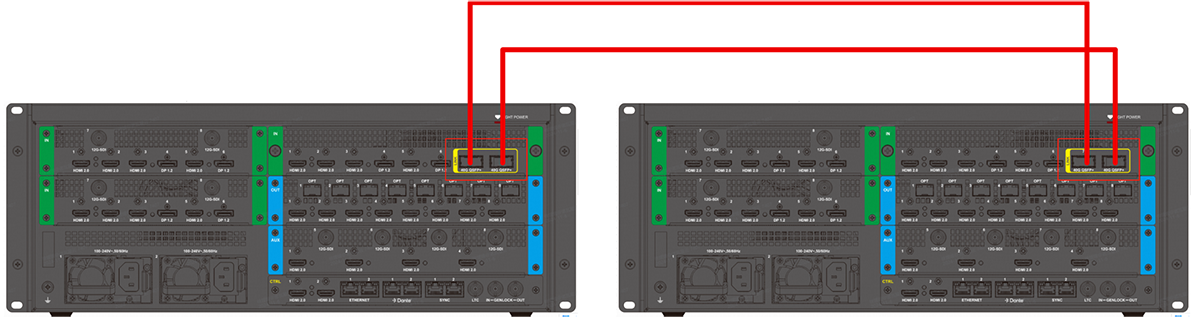
Before using Link with two P80 devices, you need to properly connect the QSFP Link ports of the devices. The schematic diagram of the Link connection between the two P80 devices is shown in the figure, where the red connection line represents 100G QSFP. Each P80 device has 2 physical 100G QSFP interfaces, and the QSFP interfaces of the two devices need to be connected in order: QSFP1 of Device 1 is connected to QSFP1 of Device 2, and QSFP2 of Device 1 is connected to QSFP2 of Device 2. The QSFP interfaces are used to transmit shared video signals. Unlike the Q8, the Link between the two P80 devices does not require an additional network cable connection.To use the Link function on two P80 devices, please ensure they are running the same firmware version.
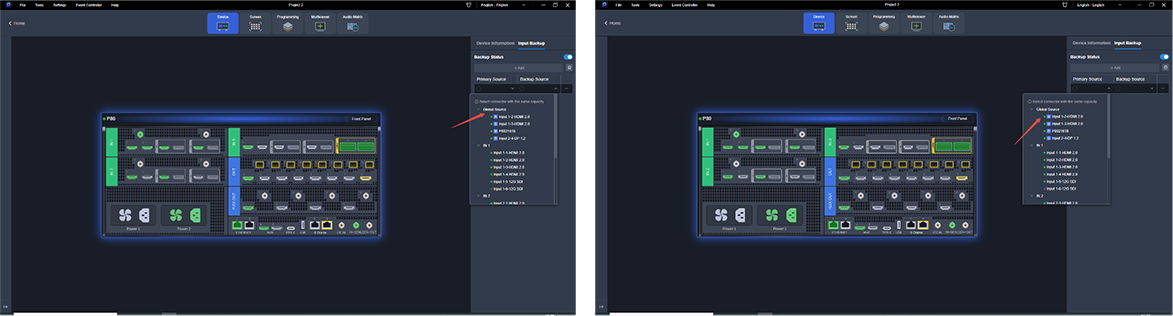
The Link function of P80 is consistent with that of Q8, and currently only supports dual-device linkage.A single P80 can share up to 8 input sources at 4K@60Hz, and two devices can share 8 input sources at 4K@60Hz with each other.Shared Link sources support the input source hot backup feature. As shown below, after enabling input source hot backup, both the primary source and backup source can be selected from Link sources and local sources.
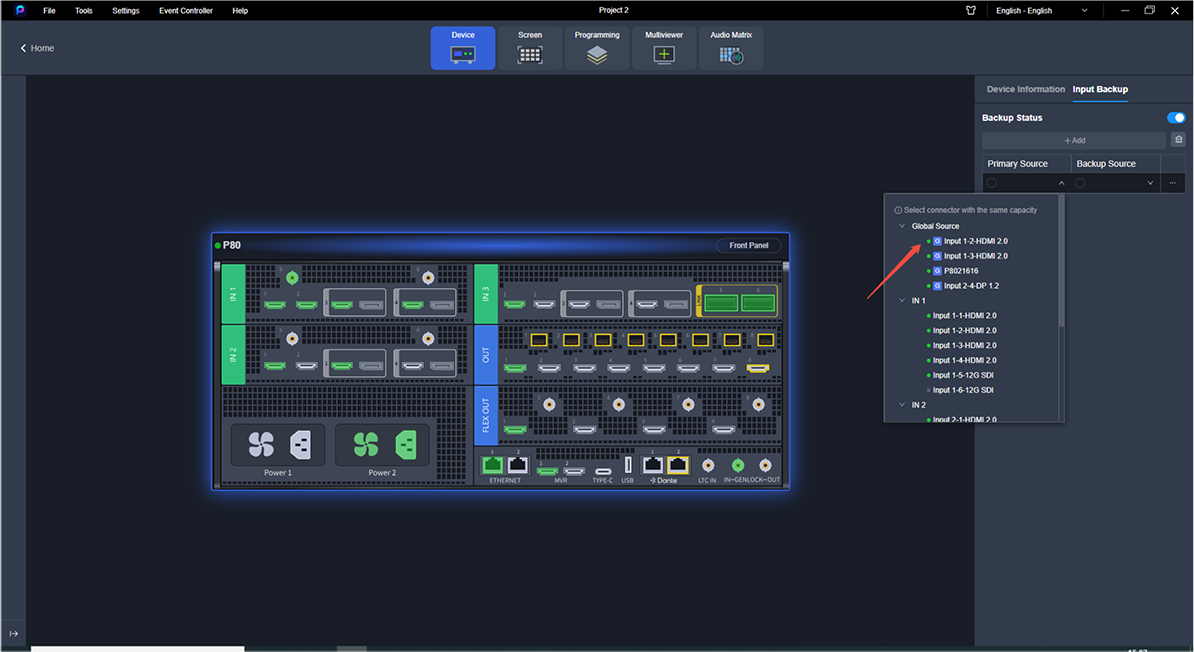
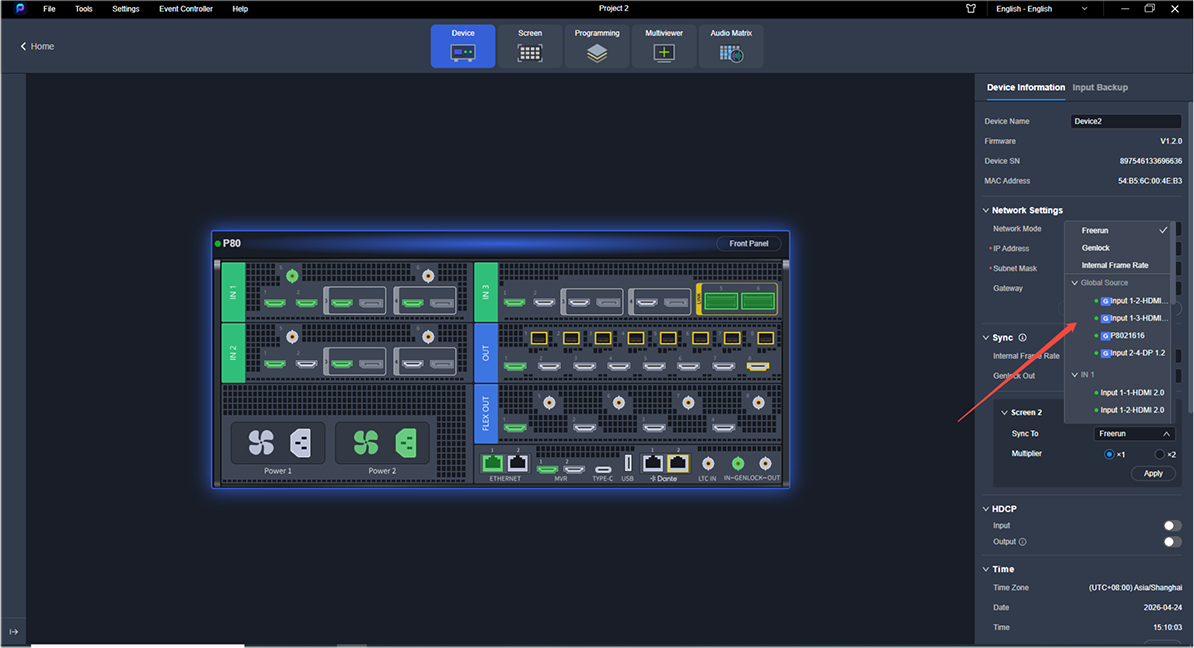
Link sources support input source cropping, but do not support input source capture.P80 Link sources also feature embedded audio. Users can select audio channels of Link sources for output in the audio matrix. In addition, the P80 allows Link sources to be used as the reference source for screen GenLock.
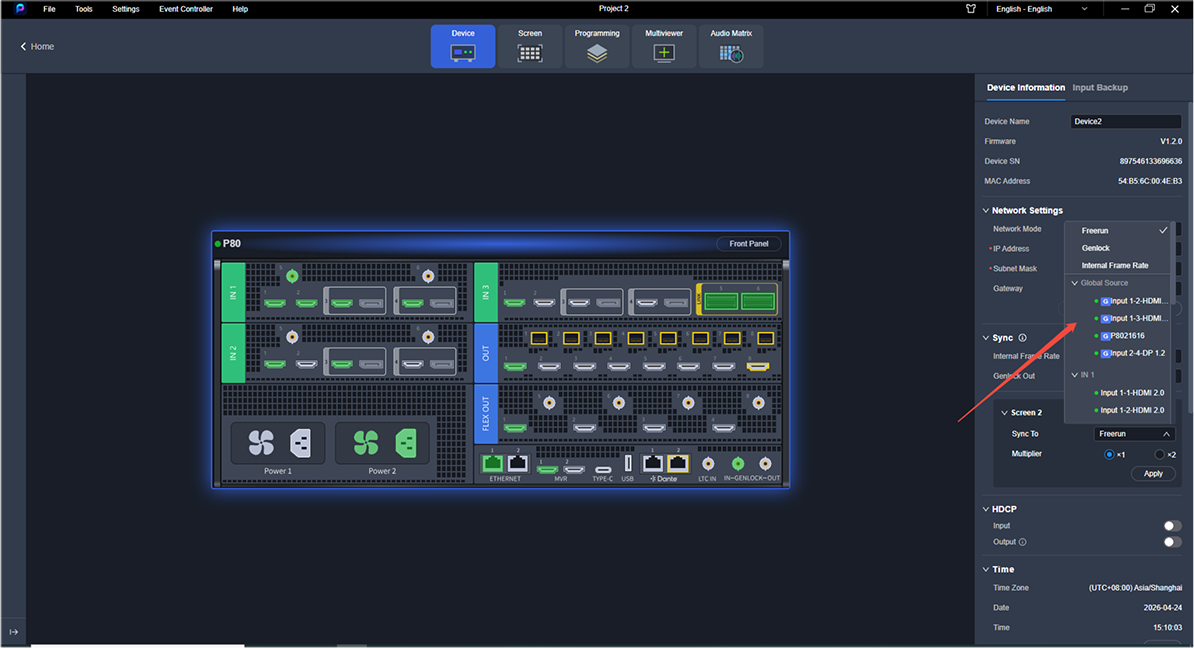
Layer creation for Link sources is identical to local sources. Besides, the P80 supports creating preview layers for Link sources in MVR.
The Link function of PixelHue-Q8 and P80 serves as the core solution to this challenge. It enables hardware-level interconnection between two Q8 units or two P80 units to share video inputs across devices. Users can utilize the shared sources for windowing, backup and other operations, breaking through the processing limits of a single unit and fully catering to all scenarios of ultra-large-scale projects.
1.Application Scenarios
The Link feature of PixelHue is designed primarily for large-scale, highly complex LED display sites to enable cascaded collaboration among multiple switchers. When the input ports of a single Q8 or P80 cannot meet the demands of ultra-large screens and multi-zone synchronized playback, you can link two devices into an integrated system. It shares input signals to realize unified scheduling and seamless synchronized output.
Input Source Expansion
For large-scale concerts where a single Q8 or P80 lacks sufficient input sources, dual-device Link connection expands the total input quantity to match on-site requirements.
Input Source Sharing
In mega conferences or concerts requiring identical input sources on two units, the Link function transmits inputs from one device to the other, achieving convenient source sharing.
Input Source Redundancy Backup
Beyond expanding input ports, PixelHue Link also builds primary-backup redundant links to ensure uninterrupted signal transmission. It fully satisfies the strict requirements of large events for high stability, precise synchronization and large-scale video processing.
2.PixelHue Link Solution Introduction
The PixelHue Link function expands the input capacity of a single unit by enabling input source sharing between two devices.
A single Q8 utilizes 8 QSFP+ (Quad Small Form-factor Pluggable Plus) ports for video source sharing. As a high-speed, high-density interconnection interface standard for professional audiovisual systems, data centers and high-end video processors, QSFP+ works with both single-mode and multi-mode optical fibers to deliver long-distance, anti-interference and low-latency data transmission.It integrates 4 independent high-speed differential channels with a per-channel rate of 10 Gbps, delivering an aggregate bandwidth of 40 Gbps per port. The bandwidth required for one 4K@60Hz RGB444 10-bit video stream is approximately 14.9 Gbps. A single QSFP+ port on Q8 can transmit 2 streams of 4K video. One Q8 can share up to 16 4K video sources in total, and two linked Q8 units can mutually share a maximum of 16 4K sources.
A single P80 adopts 2 QSFP28 (Quad Small Form-factor Pluggable 28) ports for video source sharing. As an upgraded version of QSFP+, QSFP28 supports a maximum per-channel rate of 28 Gbps, with a practical transmission rate of 25 Gbps per channel. With 4 channels in total, each QSFP28 port provides 100 Gbps bandwidth.One QSFP28 port on P80 supports transmission of 4 streams of 4K video. A single P80 can share up to 8 4K video sources, and two linked P80 units can mutually share up to 8 4K sources.
3.Q8 Link Function Operation Guide
3.1.How to Use Link
Before performing Link with two Q8 devices, you need to connect the QSFP ports and Link ports of the devices first. The schematic diagram of the Link connection between two Q8 devices is shown in the figure. The red connection represents 40G QSFP. Each Q8 device has 8 physical 40G QSFP interfaces. The QSFP interfaces of the two devices need to be connected in order: QSFP1 of Device 1 is connected to QSFP1 of Device 2, QSFP2 of Device 1 is connected to QSFP2 of Device 2, and so on. The QSFP ports are used to transmit shared video signals.
Note:
● First, the two Q8 devices need to have the same version to use the Link function; if the versions are inconsistent, the function cannot be used.
● After connecting all required QSFP ports and network ports of the two devices, add both devices to the same project in PixelFlow as shown below.
Enter the device interface of the software, go to Settings -> Link Settings, add a Link group, and enter the Link group name.
After the Link group is added, the Link group name, recommended mapping relationship, and the source list of the two devices will be displayed. In the recommended mapping relationship, the connection status of the Link's QSFP port and Link port will be shown—green indicates connected, and red indicates unconnected. In the connection status shown in the figure below, 6 QSFP ports are not connected, so the connection status is red. To enable the two devices to share 16 sources with each other, all QSFP1-8 ports must be connected.
In the Link group, there are two devices: Device 1 and Device 2. Taking source sharing from Device 2 to Device 1 as an example, select the desired source in Device 2’s source list and click the + icon in the upper-right corner of the source to complete sharing. After configuration, all shared sources will be displayed in the list on the left side of the software. In this example, Device 2 shares 8 input sources with Device 1
After sharing, Device 1 can create layers and perform other operations using sources shared by Device 2. As shown below, Global sources are displayed on the left side of Device 1’s editing interface. All layer operations for Global sources are exactly the same as those for local sources. Layers built with shared sources are marked with a “G” on the source label, indicating that the layer uses a Global source.
3.2.Functional Specifications
The Q8 Link function only supports dual-machine Link, not multi-machine Link (more than 2 units). A single Q8 can share up to 16 4K@60Hz input sources, and two devices can share 16 4K@60Hz input sources with each other. The shared Link sources support the input source hot backup function. As shown in the figure below, after enabling the input source hot backup, both the primary source and the backup source can select Link sources and local sources.
Notes:
Link sources support input source cropping, but do not support input source capture. Link sources carry no embedded audio and cannot be used as the reference source for screen GenLock. The windowing operation for Link sources is identical to that for local sources.
4.P80 Link Function Operation Guide
4.1.How to Use Link
Before using Link with two P80 devices, you need to properly connect the QSFP Link ports of the devices. The schematic diagram of the Link connection between the two P80 devices is shown in the figure, where the red connection line represents 100G QSFP. Each P80 device has 2 physical 100G QSFP interfaces, and the QSFP interfaces of the two devices need to be connected in order: QSFP1 of Device 1 is connected to QSFP1 of Device 2, and QSFP2 of Device 1 is connected to QSFP2 of Device 2. The QSFP interfaces are used to transmit shared video signals. Unlike the Q8, the Link between the two P80 devices does not require an additional network cable connection.To use the Link function on two P80 devices, please ensure they are running the same firmware version.
4.2.Functional Specifications
The Link function of P80 is consistent with that of Q8, and currently only supports dual-device linkage.A single P80 can share up to 8 input sources at 4K@60Hz, and two devices can share 8 input sources at 4K@60Hz with each other.Shared Link sources support the input source hot backup feature. As shown below, after enabling input source hot backup, both the primary source and backup source can be selected from Link sources and local sources.
Link sources support input source cropping, but do not support input source capture.P80 Link sources also feature embedded audio. Users can select audio channels of Link sources for output in the audio matrix. In addition, the P80 allows Link sources to be used as the reference source for screen GenLock.
Layer creation for Link sources is identical to local sources. Besides, the P80 supports creating preview layers for Link sources in MVR.